

Guide · Web portal
The portal, step by step.
What you need, where to click and what to do when something doesn't show up. Two paths: one for athletes, one for coaches.
Before you start
- A Forgade account: the same one you use in the app.
- The Pro plan. During the beta it can't be bought: we switch it on for testers, ask through the beta form.
- The app up to date on your phone, with at least one activity recorded with GPS or sensors.
- A computer with a recent browser. Nothing to install.
If you train
Ten minutes the first time, then your activities arrive on their own.
-
Sign in to the portal
Go to forgade.com/app and sign in with the same credentials as the app.
-
Turn on Cloud Sync
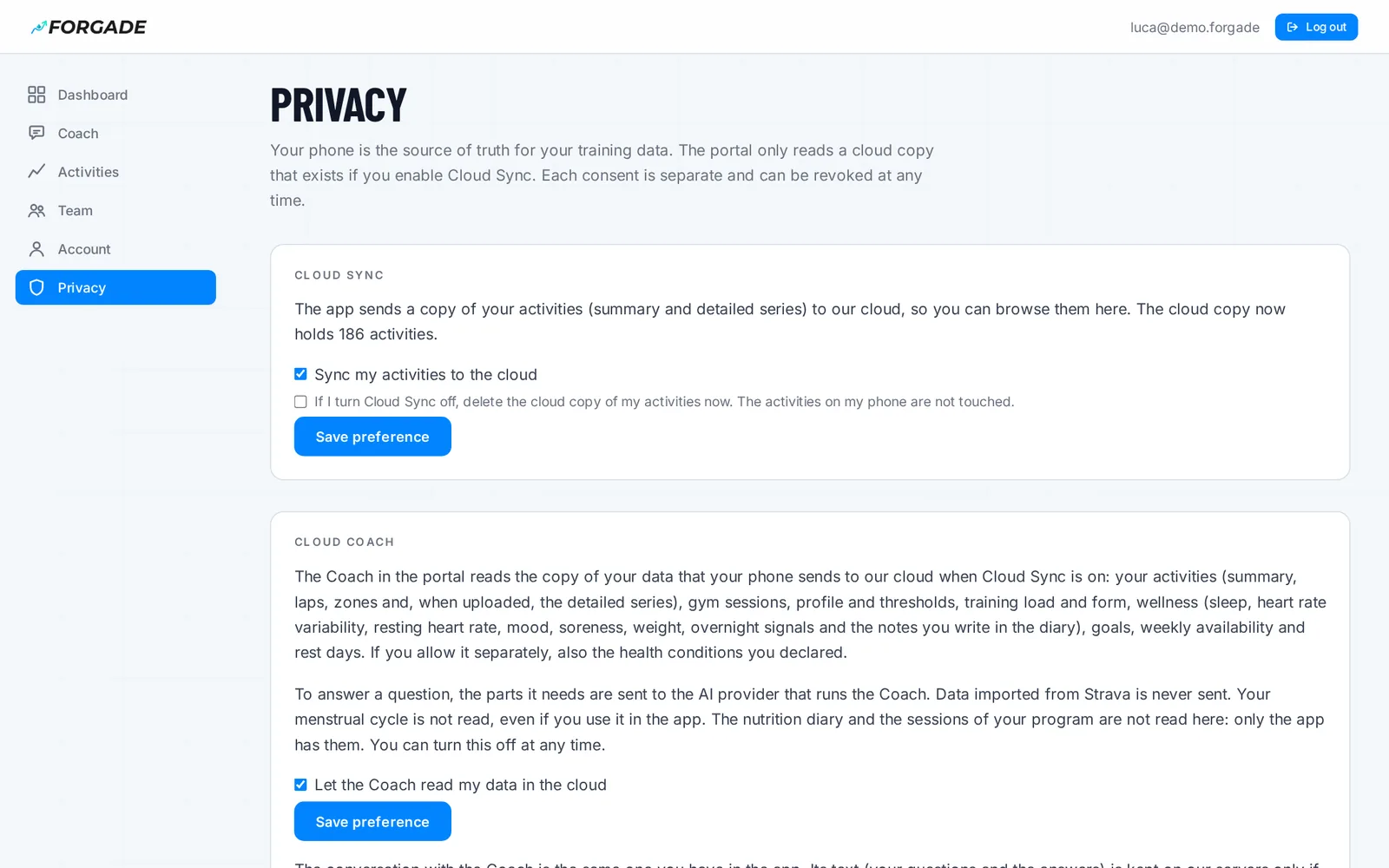
Open the portal's Privacy page, tick «Sync my activities to the cloud» and save. For now this is where you turn it on: the app doesn't have the switch yet.
-
Open the app on your phone
The app syncs on its own every time you open it or come back to it, with a connection. If you've just turned Sync on, it can take up to 15 minutes to notice. Activities recorded earlier go too: the summary first, then the detail.
-
Look at your activities
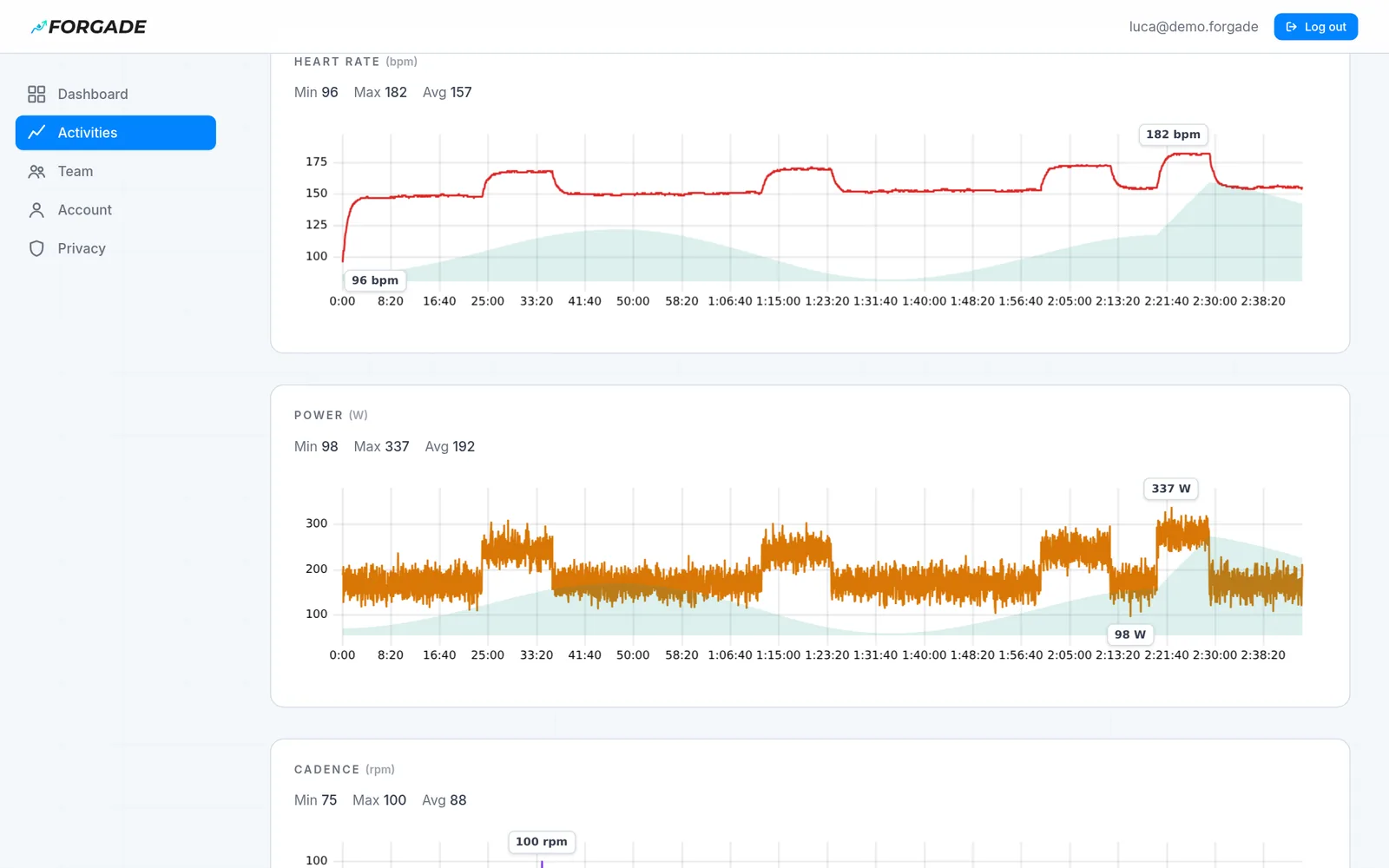
The Dashboard shows totals for the period, the consistency calendar and weekly volume. In Activities you filter by sport, period and title. Open an activity for the charts: drag to zoom into a stretch, double-click to see the whole activity again.
-
Want the map? Turn it on
The map sends your route's coordinates to the map tile provider, so it stays off until you tick «Show GPS map in my activities» in Privacy.
-
Ask the Coach
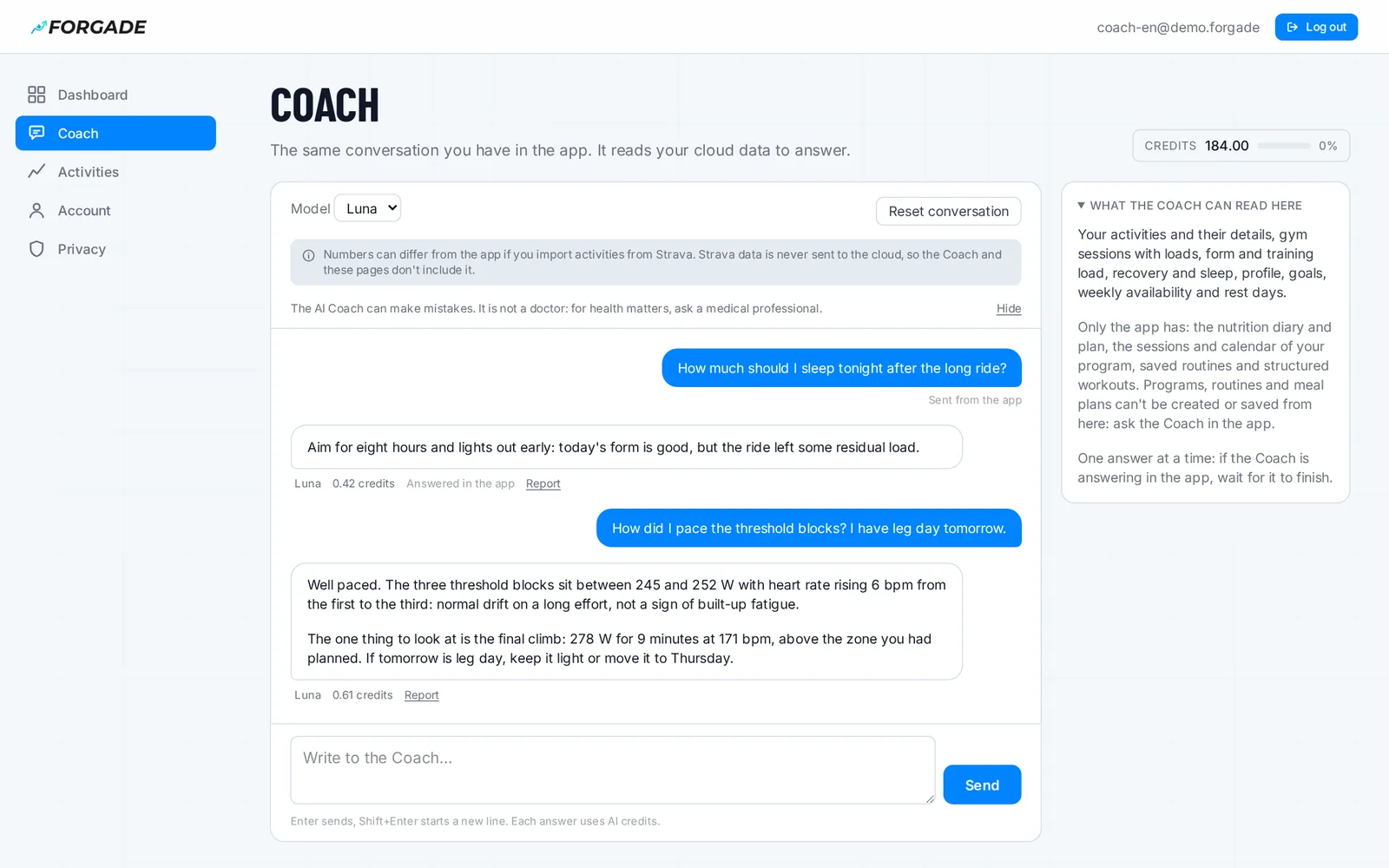
Open Coach in the menu and turn on «Let the Coach read my data in the cloud» (you can also do it in Privacy). It is the same conversation as in the app: ask anything, or press the Coach button on an activity to ask about it. Each answer uses credits.
If you coach a team
The team is created and managed in the app; from the portal you follow your athletes and send them workouts. You and your athletes need the Pro plan and Cloud Sync on.
-
Create the team in the app
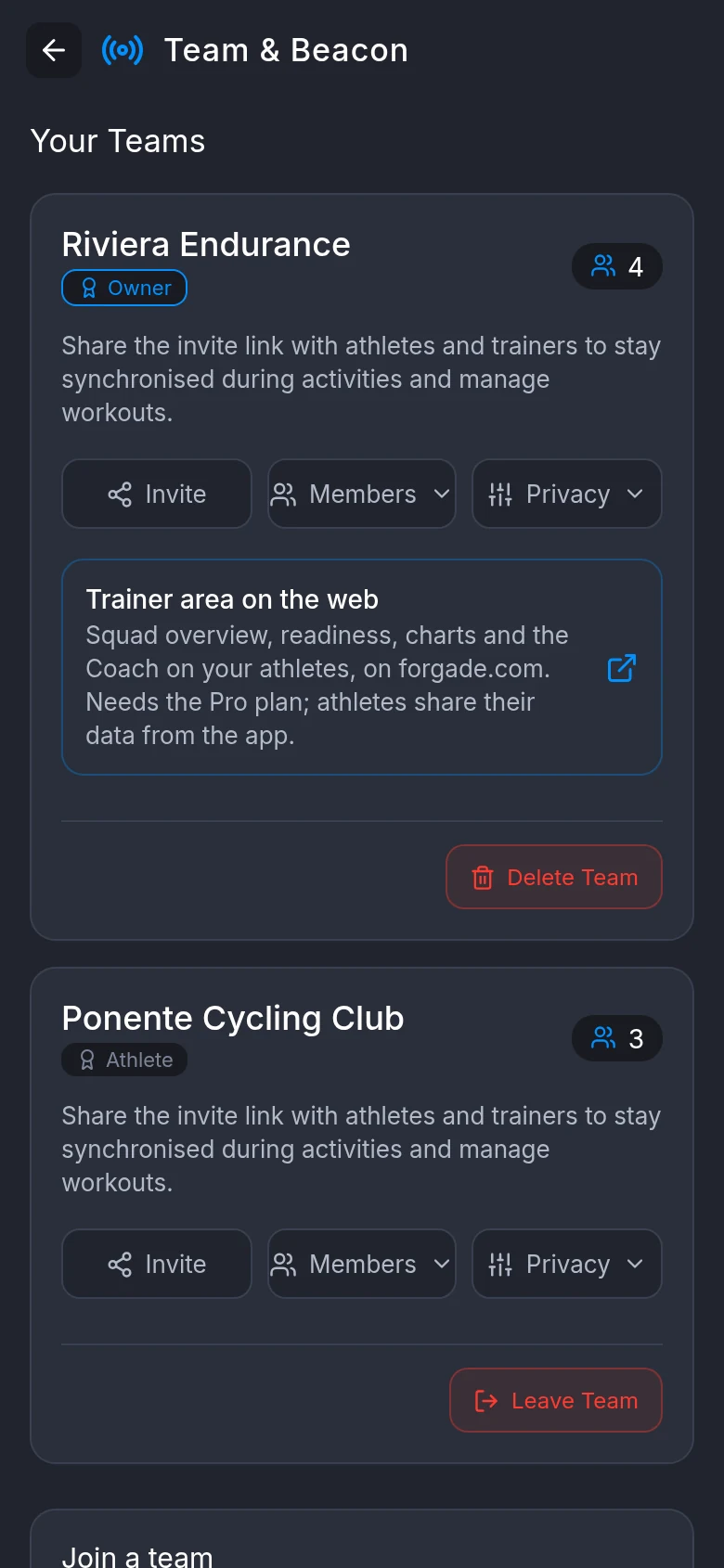
In Settings → Team & Beacon tap Create Team, then Invite and send the link to your athletes: it opens a page with the code to paste under Join a team in the app. Whoever creates the team owns it and already sees the athletes.
-
Add other coaches, if you need to
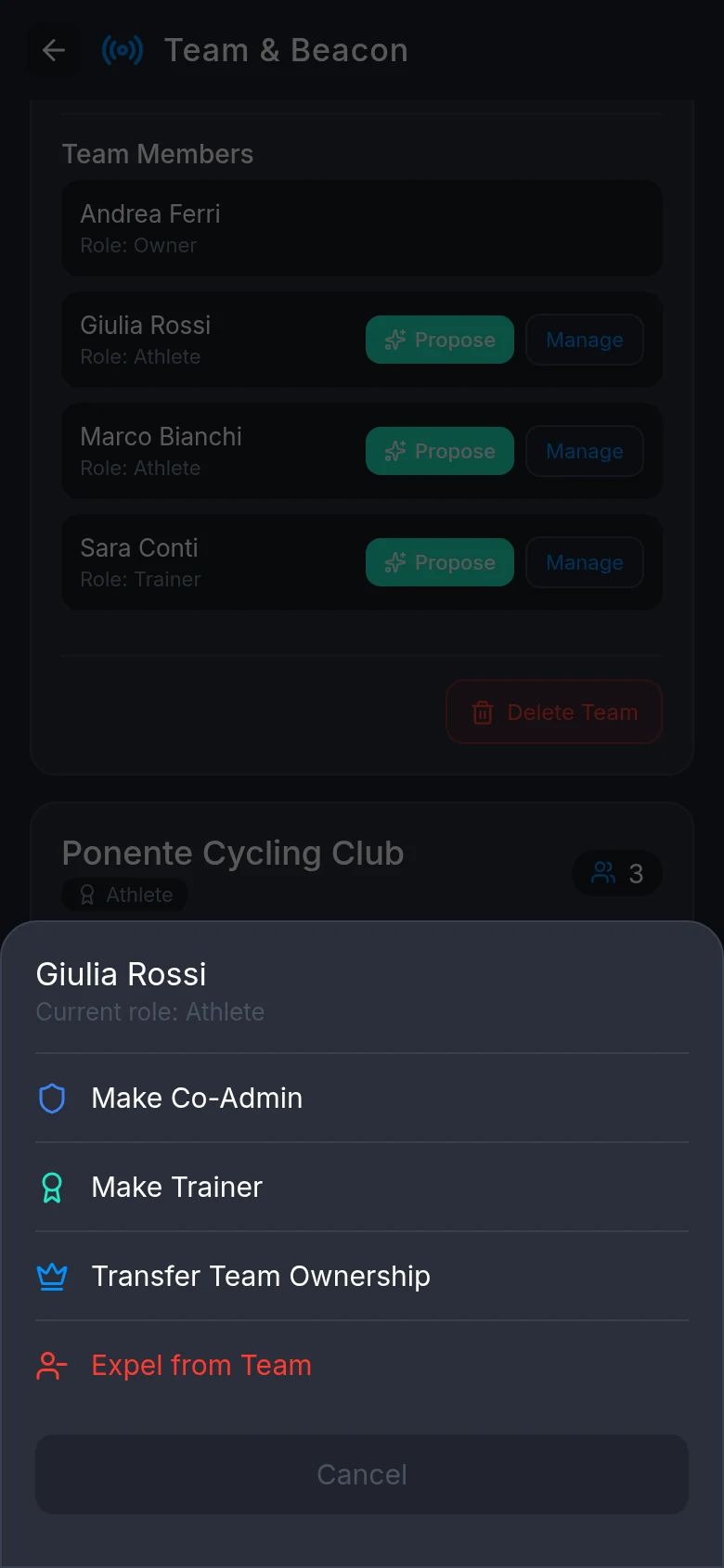
In Members the owner taps Manage next to anyone who should see the data, then Make Trainer. Co-admins manage the team but don't read athletes' data.
-
Athletes choose what to share
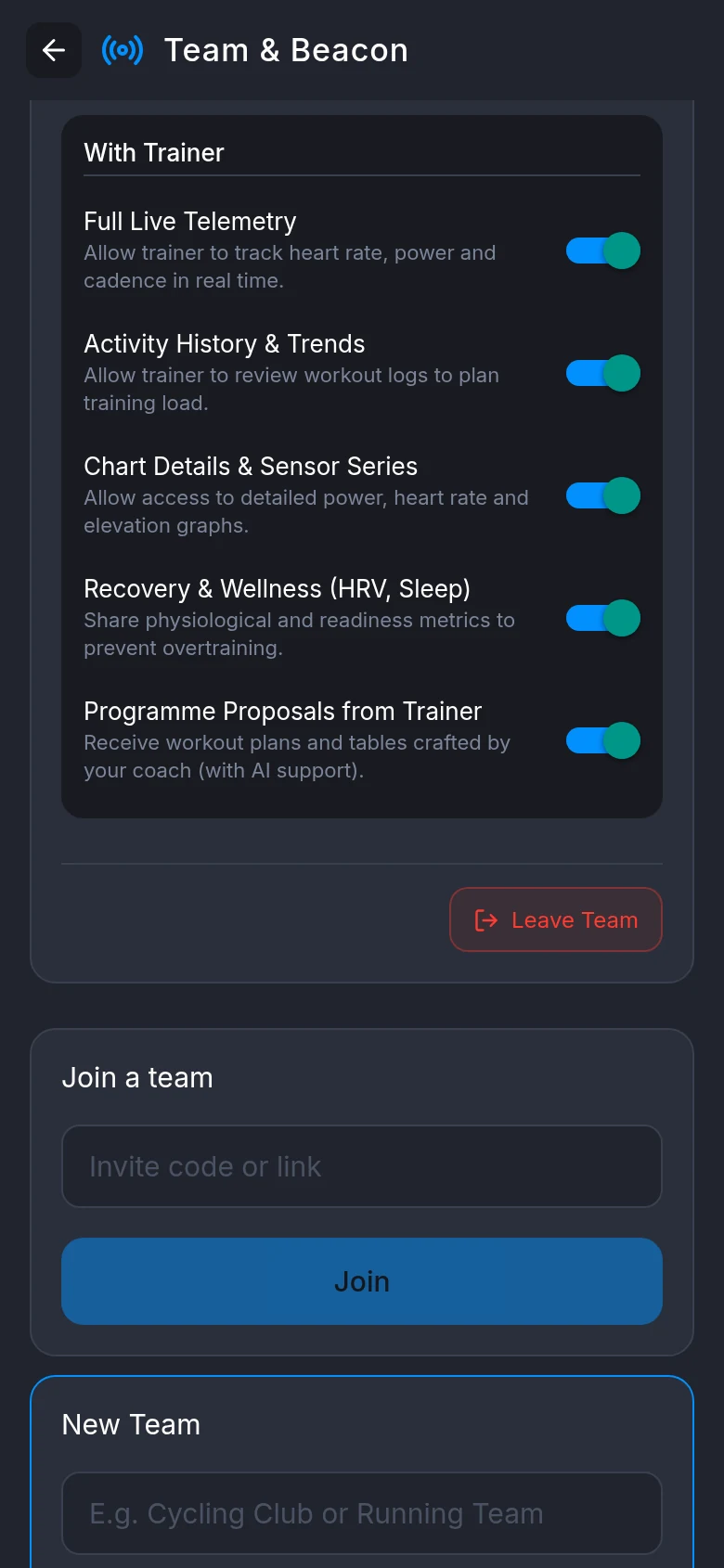
Under Privacy on the team, in the With Trainer section, three switches decide what the portal shows: Activity History & Trends, Chart Details & Sensor Series and Recovery & Wellness (HRV, Sleep). A fourth decides whether your workout proposals reach them. They're on by default and can be turned off at any time: the portal reflects it immediately.
-
Open the Team page
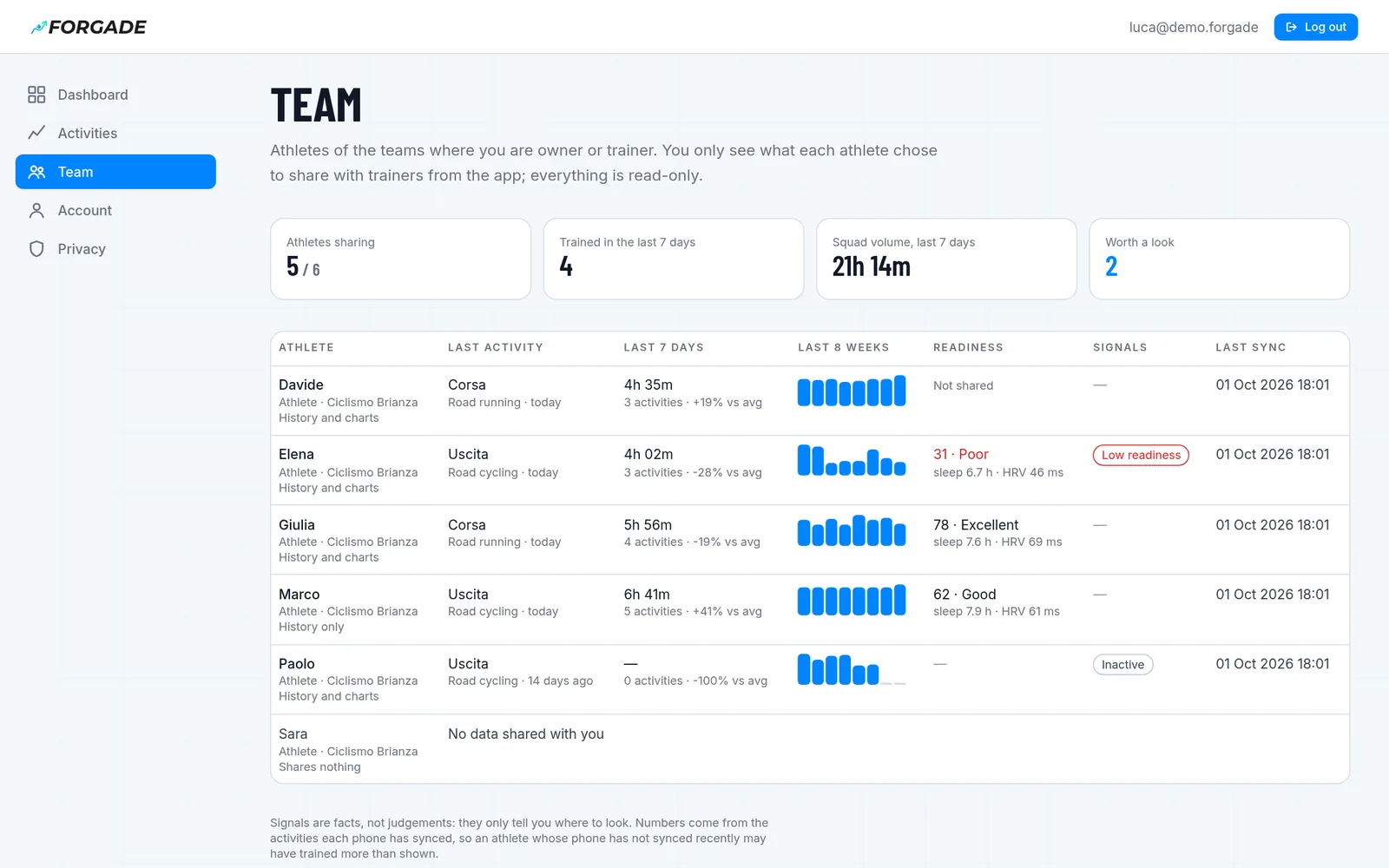
The portal now shows Team: for each athlete the last activity, the last 7 days' volume against the 4 weeks before, the last 8 weeks, today's readiness and signals (idle, load jump, low readiness, a phone that stopped syncing).
-
Open an athlete
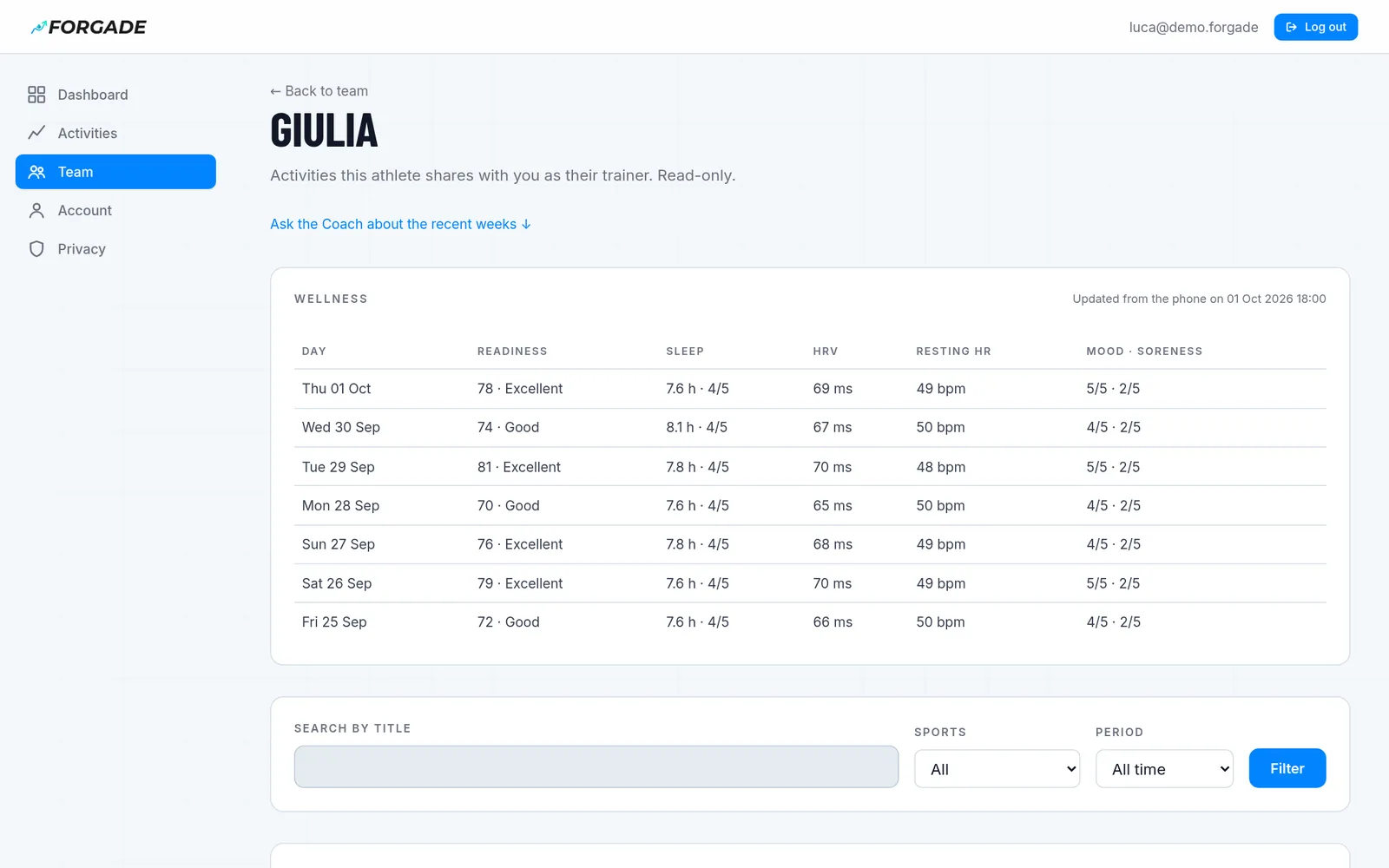
Click a name. At the top is the last 7 days of recovery (readiness, sleep, HRV, resting heart rate, mood), if the athlete shares it; below, their activities with the same charts you have for your own. At the bottom of an activity, or of the page for the last eight weeks, ask the Coach: it knows it's talking to the coach, and the credits are yours.
-
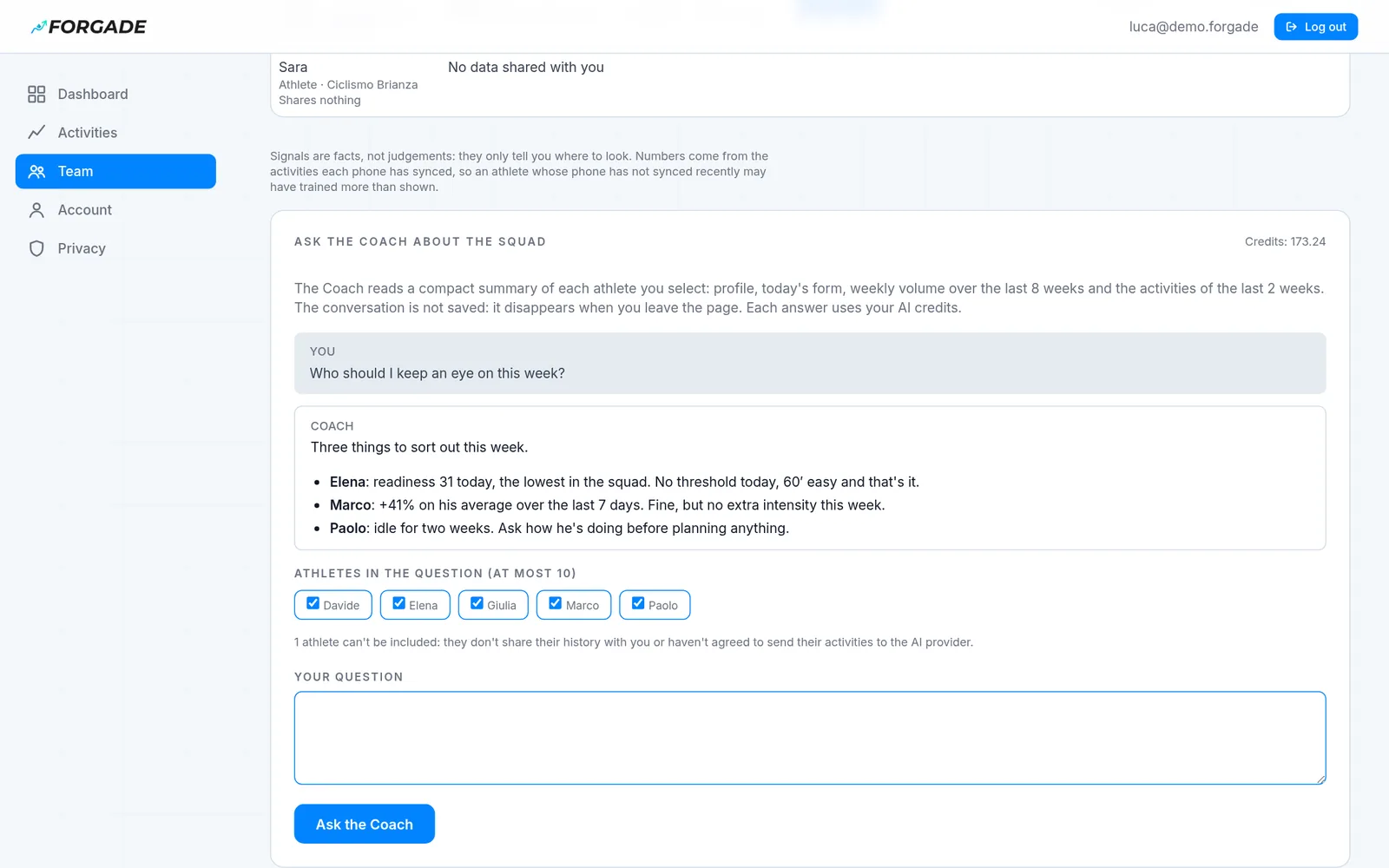
Ask the Coach about the squad
At the bottom of the Team page tick up to 10 athletes and ask your question. Only athletes who share their history with you and agreed to send their activities to the AI provider are included.
-
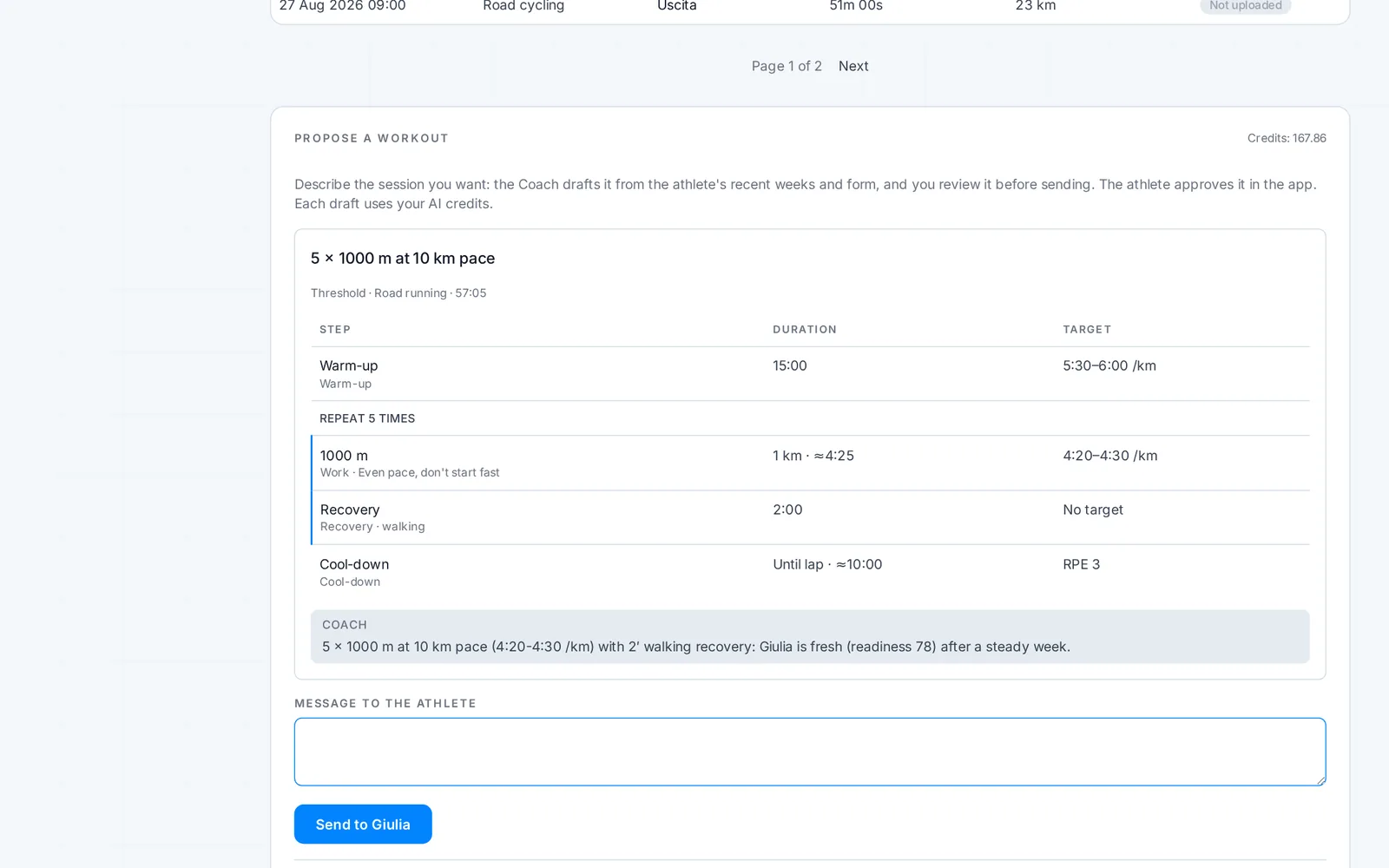
Have a workout drafted and send it
On an athlete's page, in Propose a workout, describe the session. The Coach drafts it from their form; you review it, ask for a change if needed, add a message and send it. The athlete finds it in the app and decides whether to approve it.
Your data
- Turning Cloud Sync off deletes the whole cloud copy right away. The portal asks for one extra confirmation, because there's no undo; the activities on your phone stay.
- Stopping sharing with a coach happens in the app, per team. The coach stops seeing you immediately.
- Downloading your data: in Privacy, «Download my data» produces a JSON file with what the server knows about you.
- Deleting your account from the deletion page: account, credits, cloud copy and Coach history go.
If something's off
I don't see any activity in the portal
Check in order: Pro plan active (Account page), Cloud Sync on (Privacy page), then open the app with a connection. After turning Sync on the app can take up to 15 minutes. Gym sessions aren't listed here: they go to the cloud with the same copy, and only the trainers of your team see them, depending on what you share.
The activity is there, but the detail is «uploading»
The summary arrives before the file with the series. Open the app with a connection: it finishes on its own. If it's stuck, close the app and open it again a minute later.
I deleted an activity on my phone but it's still in the portal
With the updated app, the deletion reaches the portal at the next sync: open the app with a connection. With an older version, turn Cloud Sync off (it deletes the whole copy), turn it back on and sync again.
My coach can't see my data
Three things are needed: you're in the same team and they're owner or trainer; you turned on the switches towards the trainer (history at least); you have Cloud Sync on and an active plan.
I can't send a workout to an athlete
The panel tells you why. The cases: the athlete turned off trainer proposals, didn't agree to send activities to the AI provider, or the workout needs a sensor they don't have (power without a power meter, say): then ask the Coach to rewrite it on heart rate.
The Coach doesn't answer
The panel tells you why: AI consent off, detail not uploaded yet or credits used up. Your balance is on the Account page.
You're set
Open the portal, or go back to the page about what it does.